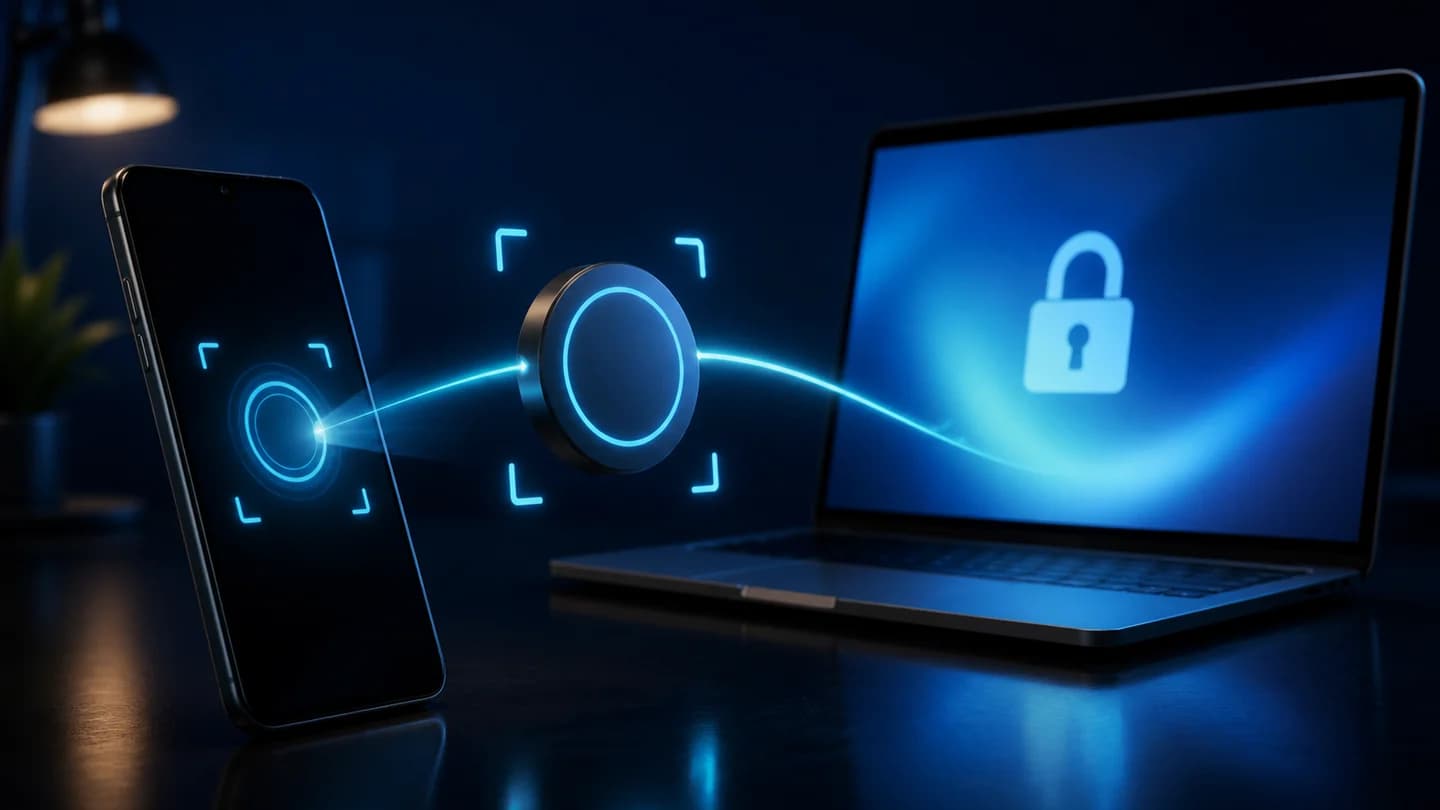
To log in by QR code, open the official Telegram Web page or Telegram Desktop on your computer. On a phone where your Telegram account is already signed in, go to Settings → Devices → Add Device and scan the code on the computer. Some app versions label the last button Link Desktop Device. Confirm the login, then check Settings → Devices to make sure the new browser or computer session is yours.
This QR flow links Web or Desktop to an existing account session. It is not the QR code used to share a contact, profile, group, or channel, and it is not a documented way to sign in from one phone to another.
Before you scan: open the official Web or Desktop client
Use one of these routes:
- For a browser, start from Telegram's official applications page and open WebA or WebK. You can also type the official Telegram WebA address yourself.
- For Windows, macOS, or Linux, download the app from the official Telegram Desktop page. Avoid installers promoted in ads, messages, or unofficial download portals.
The computer should show a large, changing QR code and a heading such as Log in to Telegram by QR Code. Telegram's current Web clients tell you to open Telegram on your phone, go to Settings → Devices → Add Device, and point the phone at the screen.
You also need a phone that is already authorized in the same Telegram account. If the phone is logged out, the QR scanner cannot approve access to that account. Use the alternative phone-number or passkey option shown by the official Web or Desktop client rather than scanning with another person's account.
Step-by-step: scan the Telegram login QR code
- Open Telegram Web or Desktop on the computer. Wait for the login QR code to appear. If the screen offers phone-number login instead, switch back to QR login if that option is available.
- Open Telegram on your authorized phone. Do not use a generic camera app or a QR scanner from an advertisement.
- Open the device menu. Go to Settings → Devices → Add Device. In older builds or instructions, Add Device may appear as Link Desktop Device; it opens the same account-login scanner.
- Allow camera access if asked. Give camera permission to the official Telegram app, not to an unrelated scanner.
- Aim at the code on the computer. Keep the complete square inside the phone's frame. Hold the phone steady and avoid glare.
- Review and confirm. Complete any confirmation that Telegram shows. If the official client asks for your Two-Step Verification password, enter it only in that official client and never send it to another person.
- Verify the result. Telegram Web or Desktop should open your account. On the phone, return to Settings → Devices and find the new session by its client or device, approximate location, and recent activity.
Telegram's technical QR login documentation explains why the process is quick: the computer displays a short-lived login token, usually expiring in about 30 seconds, and an already logged-in Telegram app must scan and accept it. The code refreshes automatically when the token expires.
Add Device or Link Desktop Device: which label is correct?
Both labels refer to the same step. Telegram's official Web interface currently displays Settings → Devices → Add Device. The mobile translation key has also been used as Link Desktop Device, so that wording remains common in older client versions and guides.
The reliable landmark is Devices inside Telegram settings. Open that page and choose the control for adding or linking a device. Do not confuse it with:
- a QR icon on a public profile;
- a group's or channel's invite QR;
- your phone's standard camera QR reader;
- a third-party “Telegram login scanner.”
Only the scanner reached through Settings → Devices is intended to approve a new account session.
How to verify or terminate the new session
Immediately after login, inspect the session from the phone you trust:
- Open Settings → Devices. Some clients place the same list under Privacy and Security → Active Sessions.
- Find the newly added browser or Desktop entry.
- Compare the client type, approximate region, and last-active time with what you just used. Location can be approximate, so judge the details together rather than relying on the city alone.
- If it is correct, leave it active. If it is unknown, select it and terminate the session.
- If several entries are suspicious, choose Terminate All Other Sessions, then sign in again only on devices you control.
Telegram's official stolen-phone FAQ confirms the Settings → Devices route and session termination. For a fuller review, follow our Telegram privacy settings guide. If you already see an unknown login, use the emergency steps in Telegram account hacked or phone lost.
Why the QR code will not scan
Try these fixes in order:
- Let the code refresh. Login tokens are short-lived. If the QR has expired, wait for a new one or reopen the login page.
- Increase screen brightness. Raise the computer display brightness, remove heavy dimming, and avoid reflections across the code.
- Adjust distance and focus. Keep the entire QR visible. Move the phone slightly farther away, clean the camera lens, and hold it still.
- Grant camera permission. In the phone's system settings, allow camera access for Telegram, then reopen Devices → Add Device.
- Check both connections. The phone and computer each need a working internet connection. Disable a failing VPN or proxy temporarily only if you trust the network you are using.
- Update official apps. Install the latest Telegram mobile and Desktop versions from Telegram's official app links or your platform's official store.
- Use the in-app scanner. A normal camera may only open a
tg://loginlink or do nothing; the intended route is inside Telegram's Devices page. - Restart the login screen. Close the stale Web tab or Desktop login window, reopen it, and scan the newly generated code.
If QR login continues to fail, choose Log in by phone number or the passkey option offered by the official client. Never use a third-party site that promises to “convert” the QR or bypass Telegram login.
Security: fake QR codes and login-token theft
Treat a Telegram login QR as a temporary login credential. Do not scan a code sent in a chat, email, support message, video call, or remote-work “verification” page. A scammer can open a login screen for a session they control and persuade you to authorize it. The QR may look genuinely Telegram-branded because the underlying login token can be real; the deception is who controls the waiting browser.
Use these rules:
- Open the official Web/Desktop login screen yourself and scan only the code visible there.
- Never send a screenshot or photo of the QR code.
- Read the phone's confirmation instead of tapping automatically.
- After every login, verify Settings → Devices and terminate anything unexpected.
- Enable Two-Step Verification and protect its recovery email.
- If a scan opens an unfamiliar site or asks you to message a code or password, cancel it.
QR expiration limits the time available to reuse a token, but it does not make an approved malicious session safe. Session review is the final check.
For related computer-only features after a safe login, see how to export Telegram chat history with Desktop.